Technical Support
& Diagnostics.
Resolution procedures, configuration verification, and troubleshooting trees for Hermes Companion iOS and the Hermes skill on macOS.
Because Hermes Companion uses your native Apple iCloud Drive sandbox, there are no external servers to experience outages. If iCloud Drive is operational on Apple's System Status, synchronization is functional.
5-Point Verification Checklist
Ensure each prerequisite is satisfied to enable autonomous background synchronization between iOS and your Mac.
iCloud~com~hermes~HermesCompanion which only synchronizes between devices sharing your account.
On macOS: System Settings → Apple Account → iCloud → iCloud Drive must also be enabled.
Troubleshooting & FAQs
Detailed step-by-step diagnostic solutions for typical synchronization and execution situations.
This indicates that macOS has not yet materialized the iCloud container file locally. To resolve:
- Launch the Hermes Companion app on your iPhone and tap "Force GPS Fix" or move slightly to record the initial fix.
- Verify in iPhone Settings that iCloud Drive is enabled for Hermes Companion.
- On your Mac, run:
ls -la ~/Library/Mobile\ Documents/iCloud~com~hermes~HermesCompanion/Documents/. - If the directory does not exist yet, allow iCloud Drive 30–60 seconds to perform its initial container provisioning handshake.
No, this is by intentional design. Hermes Companion uses a write-on-change architecture:
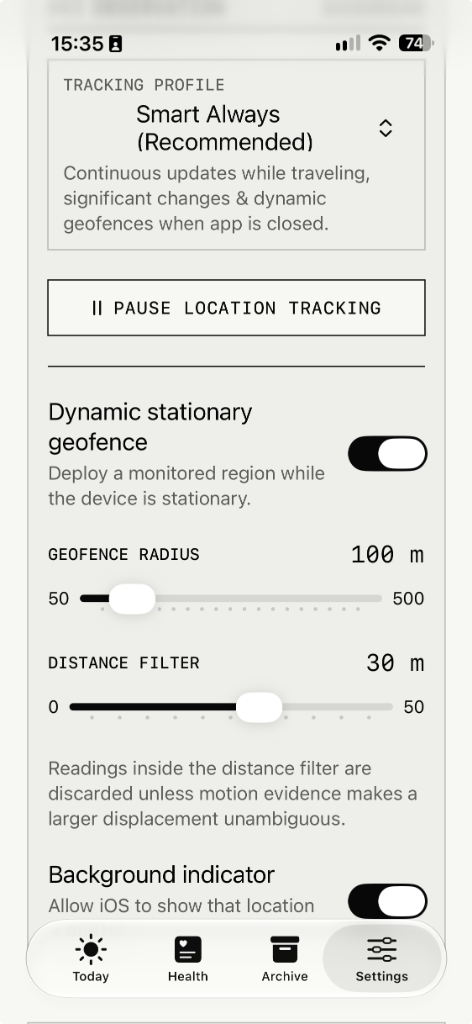
Indoor GPS jitter (10–50 meters) is deliberately refused to prevent battery drain and artificial movement noise. Stationary readings are only recorded if displacement exceeds 150m or speed exceeds 1 m/s.
When you stay at the office or at home for 4 hours, the timestamp stays anchored at your arrival time. The Hermes agent calculates fix_age_minutes: 240 and correctly concludes: "You are still at the office."
Open your iPhone's native Settings app → scroll down to Privacy & Security → tap Location Services → tap Hermes Companion → select Always.
Also ensure Precise Location is toggled ON and Background App Refresh is enabled in Settings → General → Background App Refresh.
HealthKit delivers sleep records when you wake up and when your Apple Watch completes sleep stage classification. Note:
- Verify Apple Health permissions in iPhone Settings → Health → Data Access & Devices → Hermes Companion.
- Make sure Sleep Analysis and Workouts are toggled on.
- Health snapshots are written when Apple Health emits new samples or on background refresh, not on every GPS tick.
If you keep your container or places configuration in custom directories, configure Hermes via CLI:
hermes config set skills.config.hermes-companion.icloud_dir "$HOME/Library/Mobile Documents/iCloud~com~hermes~HermesCompanion/Documents"
hermes config set skills.config.hermes-companion.places_file "$HOME/places.json"
Interactive Terminal Diagnostics
Select a diagnostic test below to inspect the expected command line output for each stage of the synchronization pipeline.
$ python3 skills/hermes-companion/scripts/companion.py
facts_only:
source: /Users/username/Library/Mobile Documents/iCloud~com~hermes~HermesCompanion/Documents/latest_location.json
place: Home
category: home
motion: stationary
fix_age_minutes: 18
status: still_at_place
Developer Contact & Issue Submission
Encountered an edge case or need technical guidance? Reach out through GitHub or submit your diagnostic report.
For bugs, feature enhancements, or contributing to the Swift codebase and Hermes skill, GitHub Issues is our primary tracking system.
For App Store support inquiries, private security feedback, or direct assistance: